|
Correl-Covar macro |
 |
|
Correl-Covar macro |
|
The macro was written in 2010 by Zubin J. Dalal and Aaron M. Carlton. It fills in the upper triangle of an Excel correlation or covariance matrix:
| Before | After |
 |
 |
Instructions for downloading the macro
First, search your computer for files that end in ".xla". These files are add-ins for Microsoft Excel. We are going to be installing the CompleteTable.xla add-in, and we want to put it in the same place as the other add-ins on your computer.
To search your computer using Windows Explorer, select the "Search" button and fill in the boxes like this:

Click on "Search" at the bottom of the box, and your computer will search for ".xla" files. When it's done, you'll get a window like this:
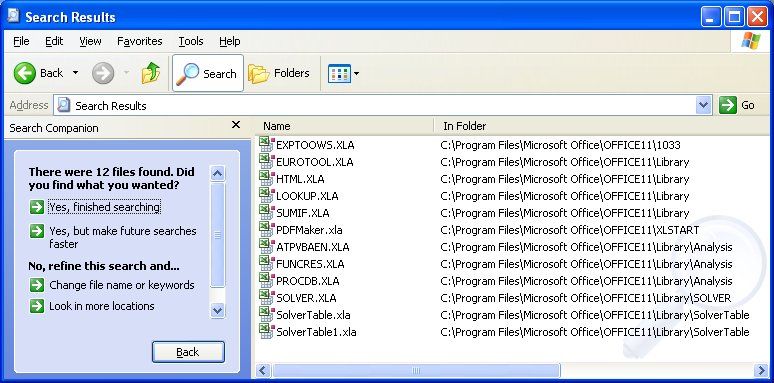
The specific appearance of your computer will be a little different, but the main thing here is to get an idea of where the add-in files are stored. Here, we can see that there are a lot of ".xla" files in the folder C:\Program Files\Microsoft Office\OFFICE11\Library. So it seems logical to save the new add-in there.
(This is not critical. The macro will still work if you save it somewhere else. This step is simply intended to help keep your computer well-organized.)
Now right-click here to download the add-in file. Save it in the folder that contains your other add-in files.
Click the Microsoft Office Button (this is the button in the upper left corner) , and then click Excel Options.
Click the Add-Ins category.
In the Manage box, click Excel Add-ins, and then click Go.
To load an Excel add-in, do the following:
In the Add-Ins available box,
select the check box next to the add-in that you want to load, and then
click OK.
Tip: If the add-in that you want to use is not listed in the Add-Ins
available box, click Browse, and then locate the add-in.
If the add-in is not currently installed on your computer, click Yes to install it.
Running the Macro
Once it's installed, the macro will automatically fill in the blank part of your Excel matrix. All you need to do is select a cell (or cells) within the matrix and hit Shift+Ctrl+o. (That's the letter o, not the number 0.) You will then be prompted to select the range of numbers in your matrix. Select just the numbers, not the names of the variables.
Any suggestions or comments, please e-mail David Juran.
[ Stern Home Page
|
IOMS Department Home Page
|
B60.2350 Home Page | Projects
|
Mission
]
[ Syllabus
|
Course Description
|
Downloads|
David Juran Home Page
| About the Instructor
]
email: djuran@stern.nyu.edu | tel: (203) 876-0086 | 73 Minuteman Drive, Milford, CT 06460